Smartsheet
Integrations 2025
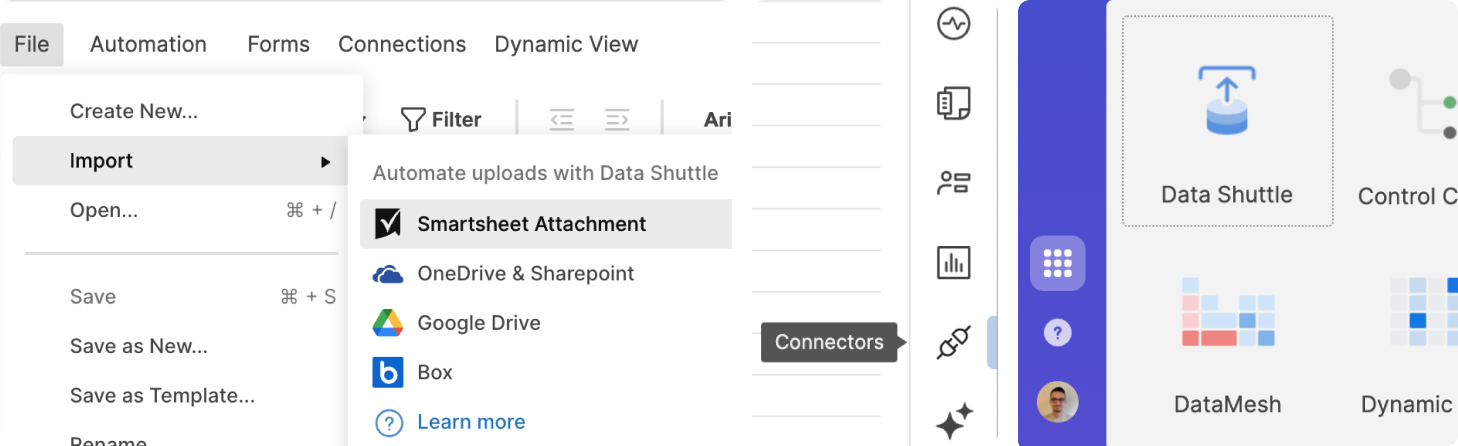
This project focused on unifying the experience across Data Shuttle and Connectors by keeping data in sync between Smartsheet and external third party app such as Google Sheets, OneDrive, Box, Salesforce, Jira, Microsoft Dynamics, and more.
.
Why Integrations matter
Integrations are one of the top three criteria customers consider when choosing a collaboration tool.
At Smartsheet, integrations are also the third highest-performing premium capability.

Despite their importance, the integrations experience did not clearly communicate its value or capabilities, especially compared to competitors.

Improving this experience was critical not only for usability, but also for adoption, retention, and revenue.
26B
Data Shuttle
Rows processed
Monthly
53M
Data Shuttle
Workflow executions
Monthly
34K
Data Shuttle
Active users
Monthly
$28M
Data Shuttle
ARR generated
Quarterly
Problem overview
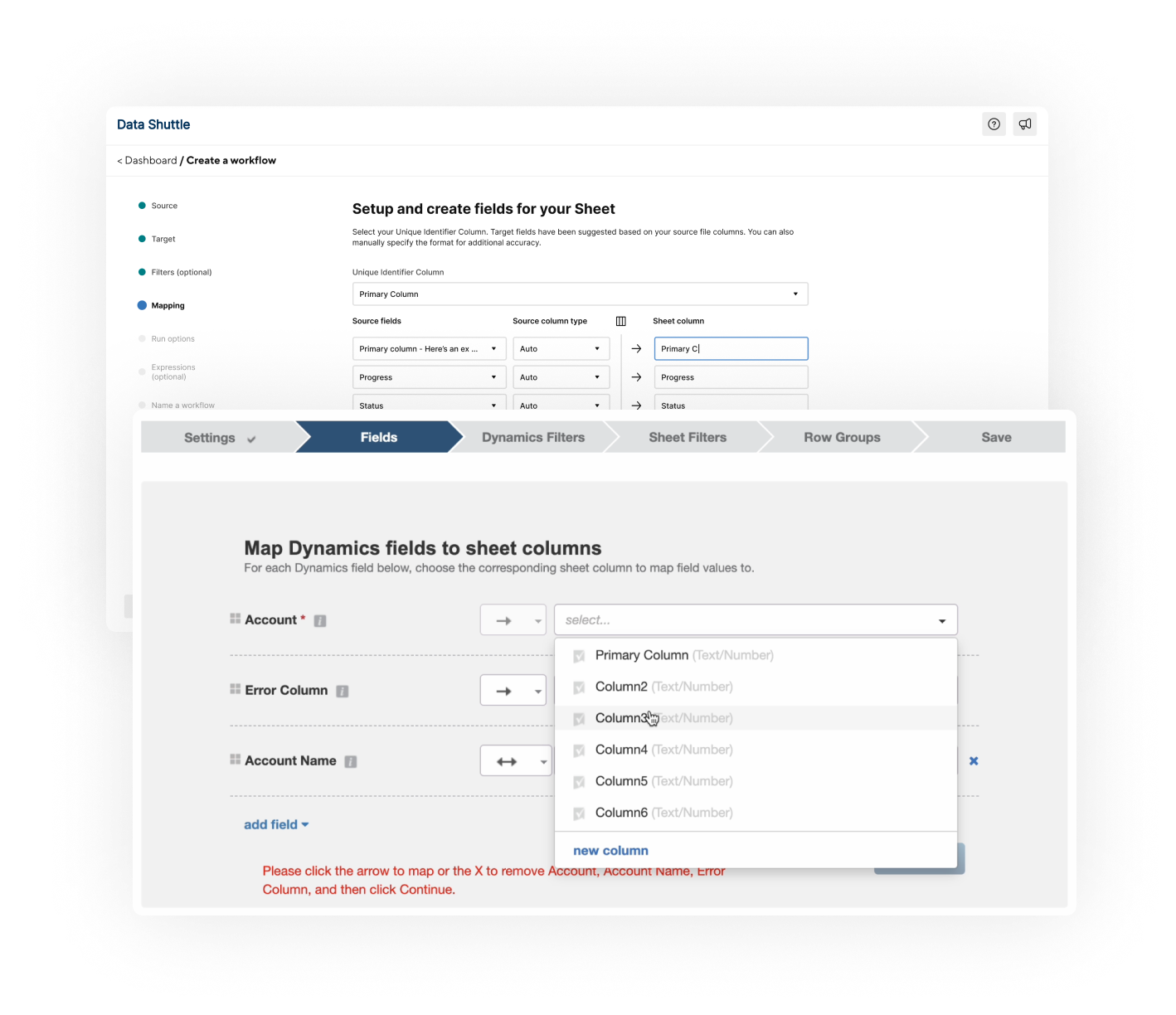
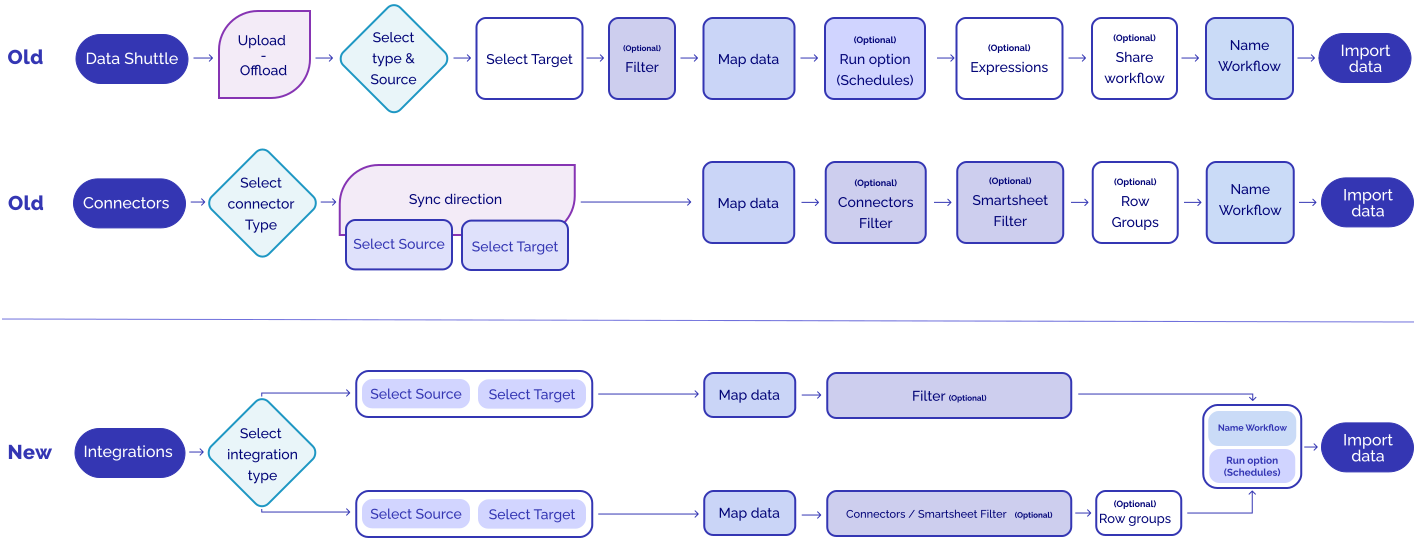
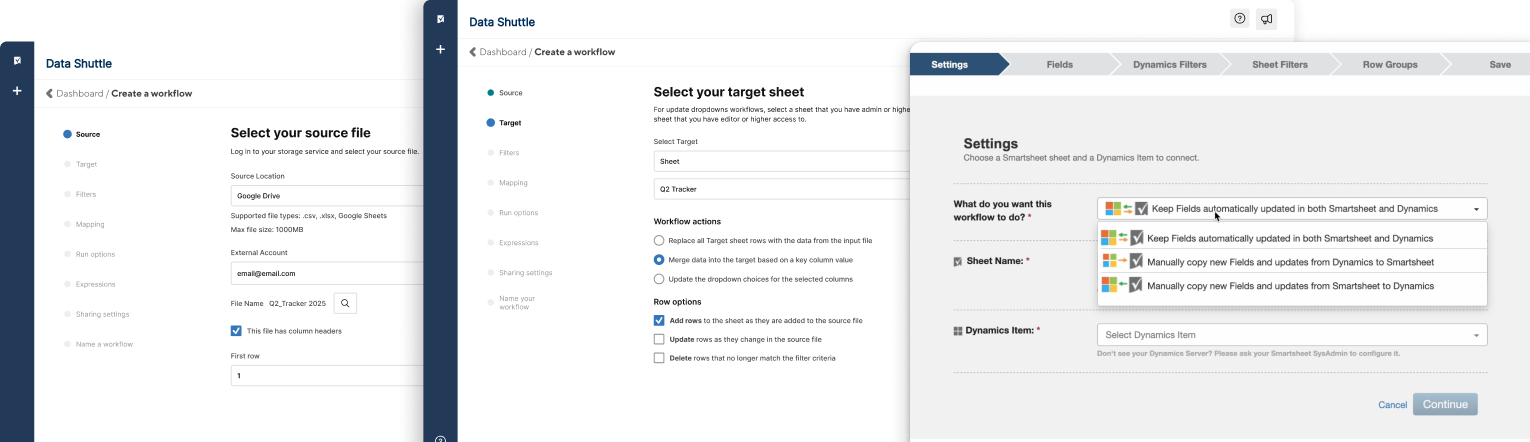
Data Shuttle and Connectors had separate entry points, distinct user flows, and inconsistent UI patterns. Creating a workflow could feel unintuitive, particularly for new users, and once created, workflows were managed across multiple dashboards.

Additional complexity came from:
  • Separate dashboards per integration type
  • Extra dashboards for Jira, Salesforce, and Microsoft Dynamics
  • Integrations living outside the core app, forcing users to leave their current context to configure, maintain, or iterate on workflows
This fragmentation caused confusion, increased cognitive load, and led to workflow abandonment.
Problem we are solving
Increase discoverability
Users struggled to understand what integrations were available and where to find them.
Goal
  • Keep Data Shuttle and Connectors under a single umbrella
  • Lower the barrier to entry, especially for new or less experienced users

Reduce workload
Workflow creation required too many steps and too much manual configuration.
Goal
  • Create a unified experience across integration types
  • Reduce setup steps from 6–8 to 4, accelerating time-to-value
  • Support existing and future integrations with a scalable user experience

Respect user intent
Users came in with different goals and levels of expertise, but treated everyone the same.
Goal
  • Provide a clear onboarding flow that builds confidence and muscle memory
  • Offer flexibility to create & run immediately or save and run later
  • Use AI to assist without removing user control
User flow
The improved journey
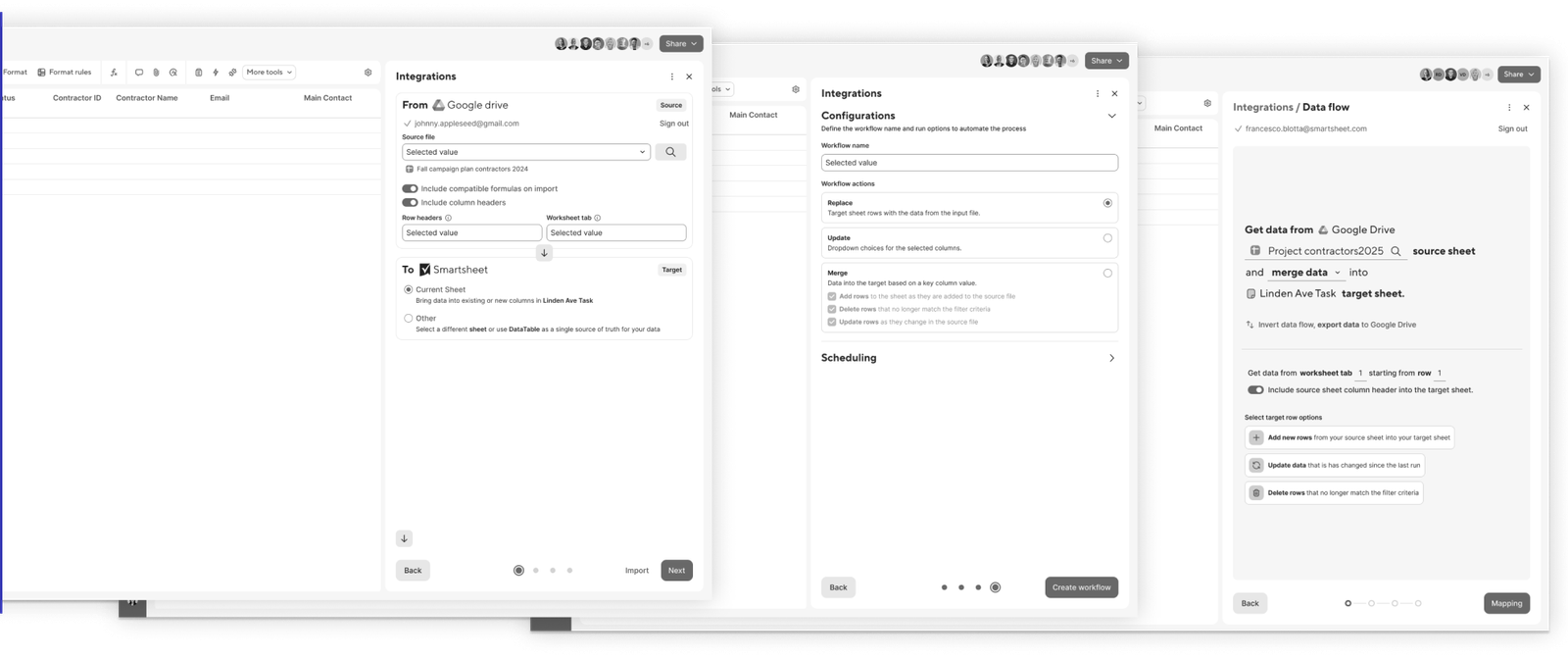
First design iteration & user testing
Early explorations focused on condensing the workflow into a single, directional experience.

What didn’t:
  • The experience became visually cluttered
  • Export actions were not clearly understood
  • Workflow actions felt more intuitive when placed earlier in the flow
What worked:
  • Users liked the condensed flow
  • Visualizing data during column mapping increased confidence
  • A “mad-lib” style configuration felt familiar and approachable
Entry points - triggers & behaviours
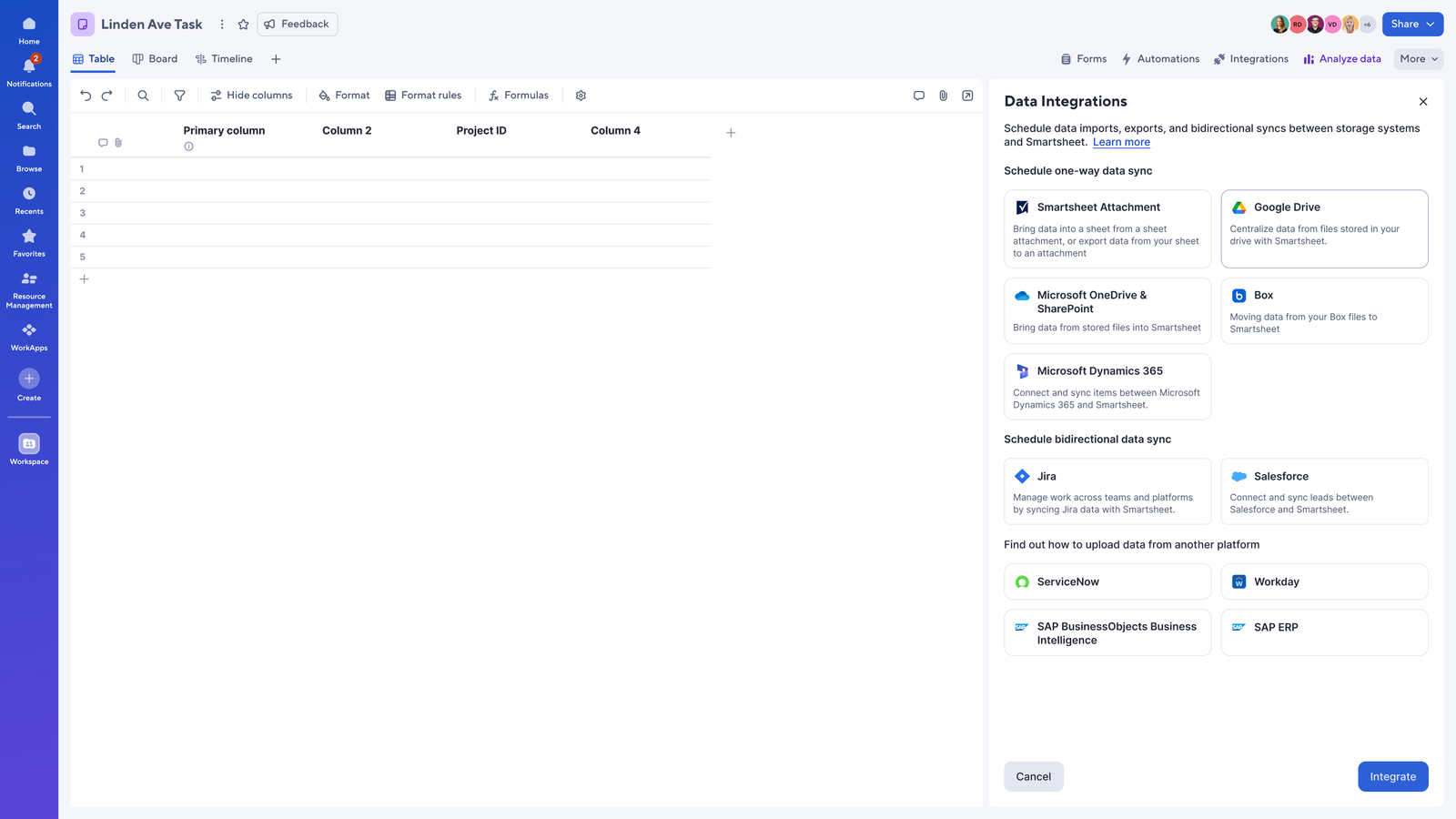
Discoverability
Problem
Integrations were surfaced in separate locations with little explanation, making them difficult to discover and understand. Users often didn’t know which tool to use or what was possible before starting.

Solutions
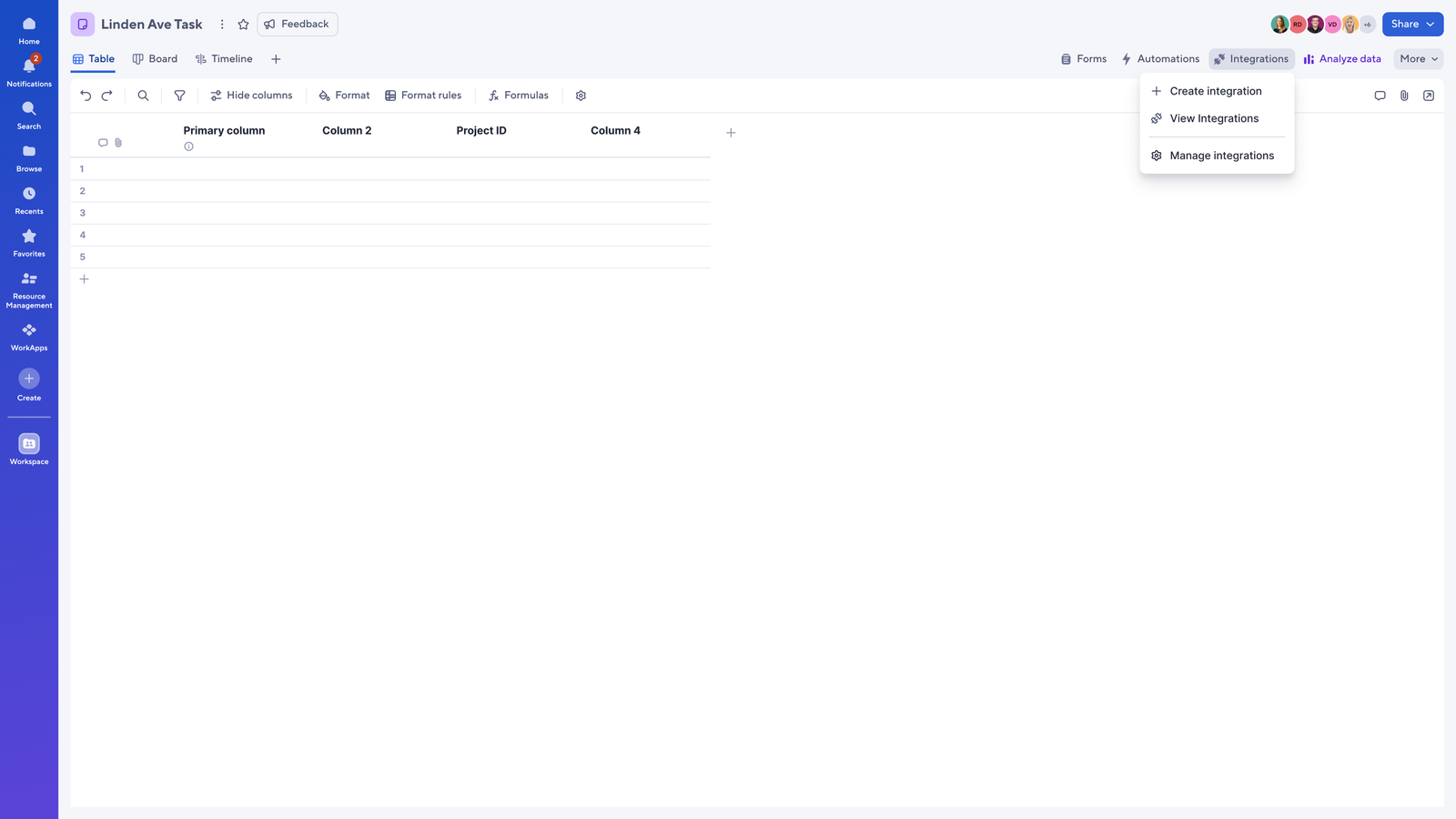
  • Introduced a persistent integrations entry point at the sheet level, workspace and homepage
  • Centralized all integrations into a single place
  • Organized integrations to surface both existing and future capabilities
This helped users understand and explore integrations based on intent.

Workflow creation +0 %
Manage integrations+0 %
Workflow creation
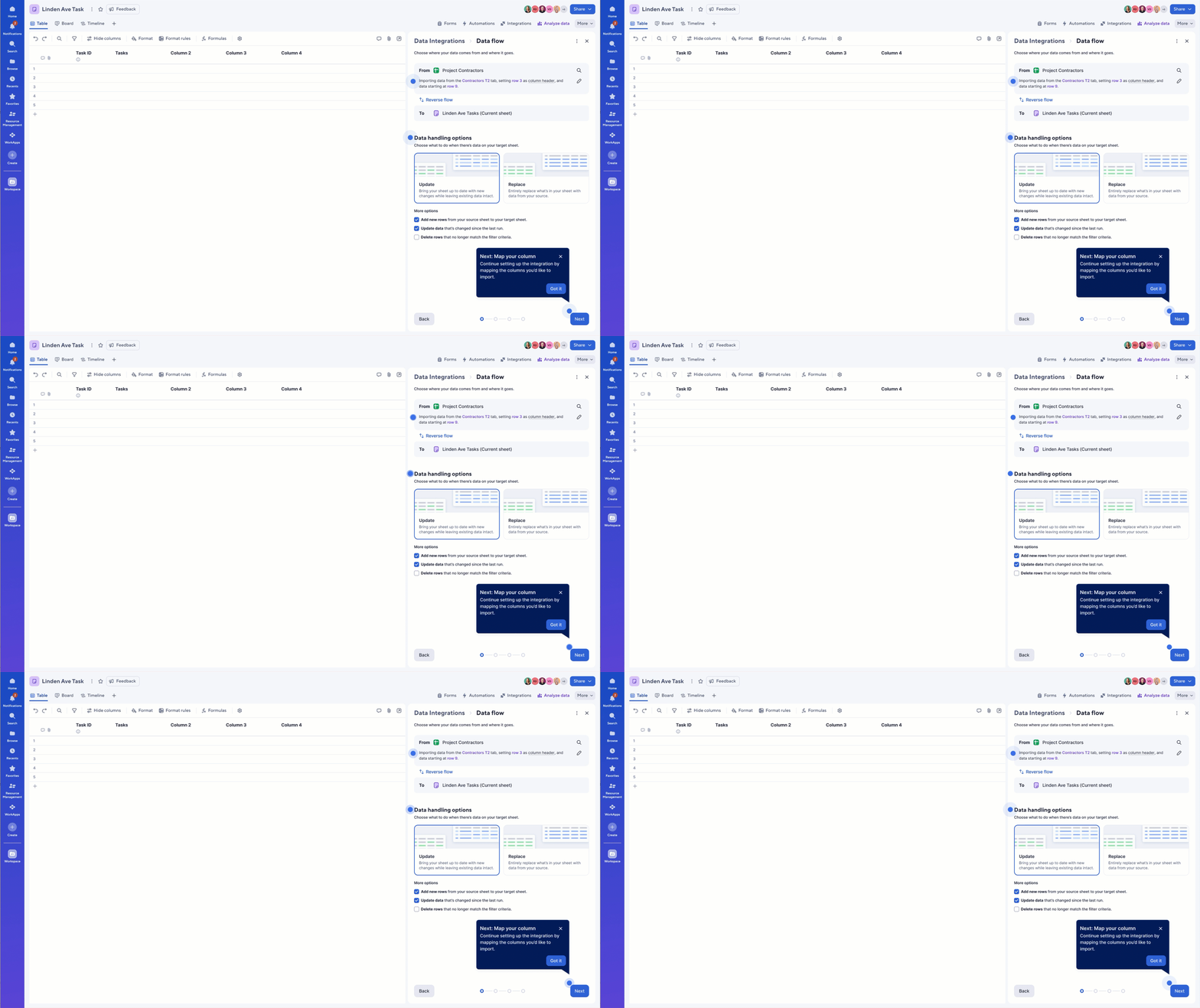
1. Data flow direction
Problem
CSource and target steps were separated, creating visual clutter and confusion, especially around data handling options. Users struggled to understand how data would be treated before running a workflow.

Solution
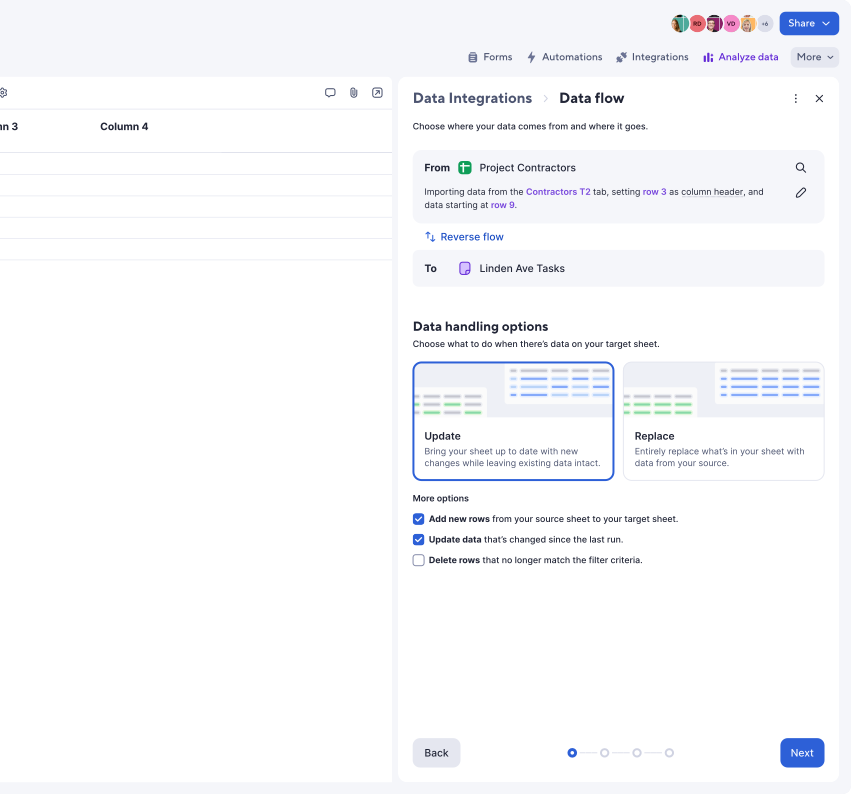
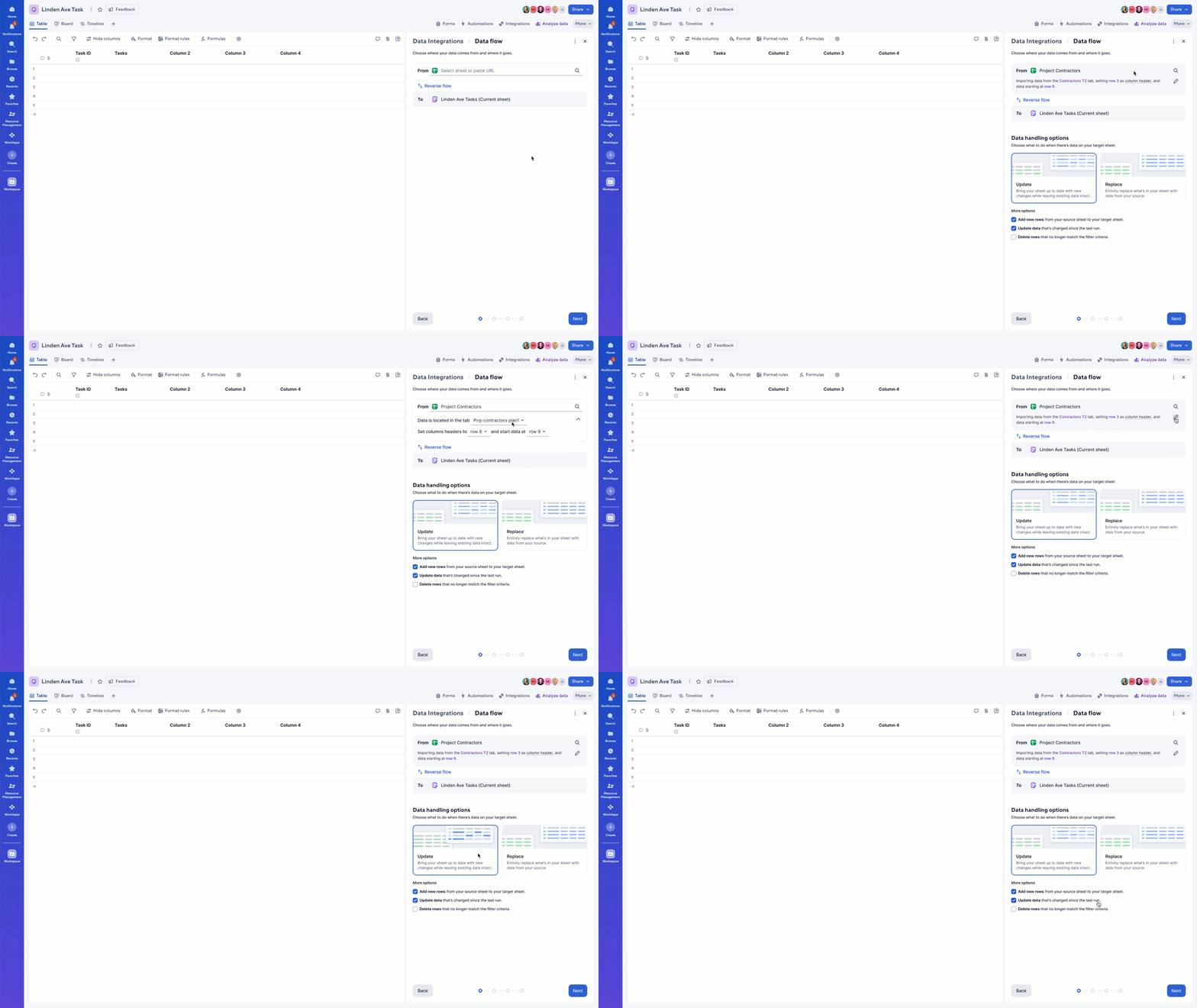
  • Combined source and target into a single, directional flow
  • Used AI to suggest: Dataset and sheet tab, default column headers, and the row where the data begins.
  • Replaced dense configuration panels with visual cards
  • Revealed advanced options progressively
  • Renamed the section to Data Handling Options for clarity

This reduced cognitive load while keeping advanced control accessible.
Workflow creation
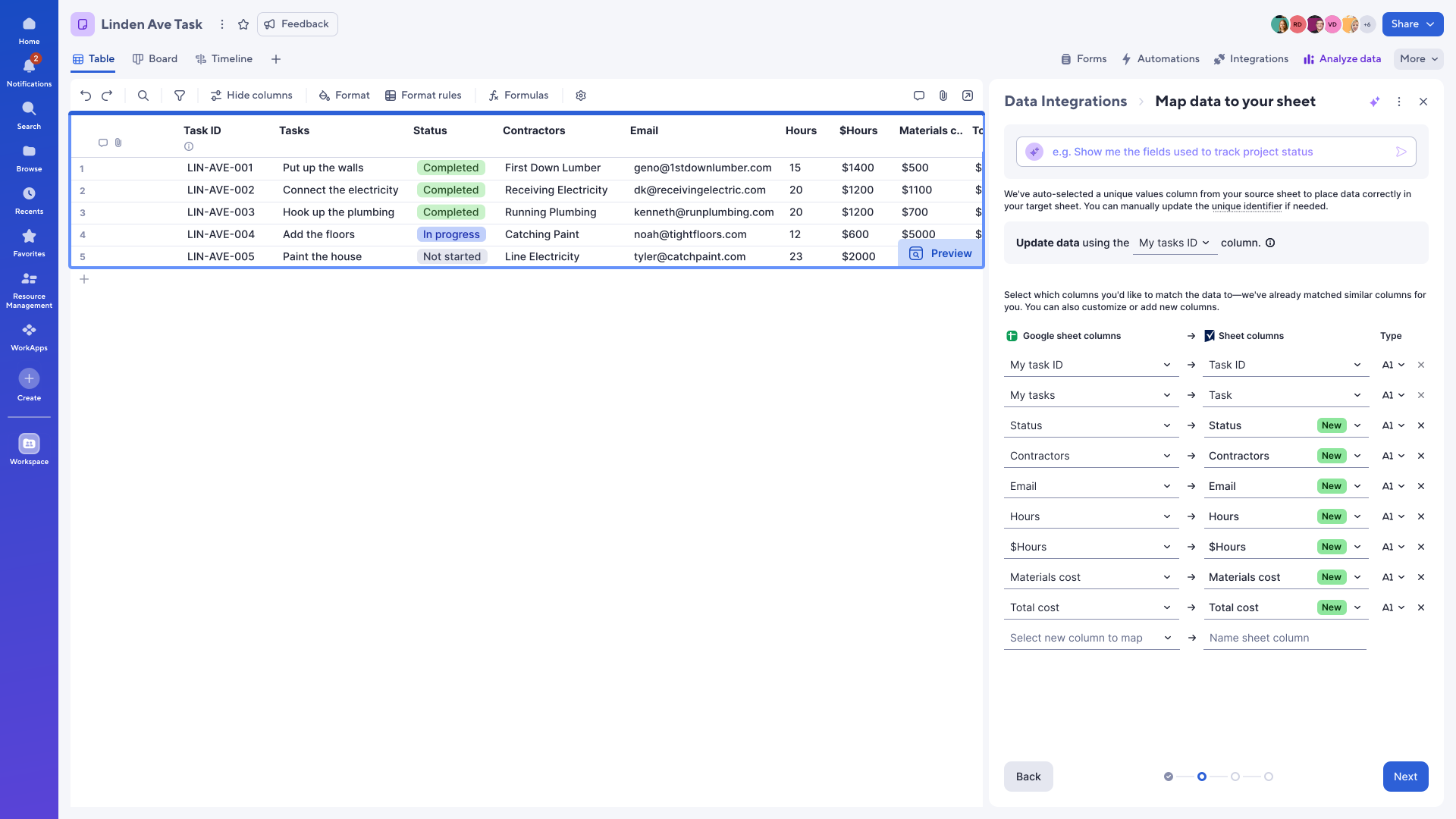
2. Map data to your sheet
Problem
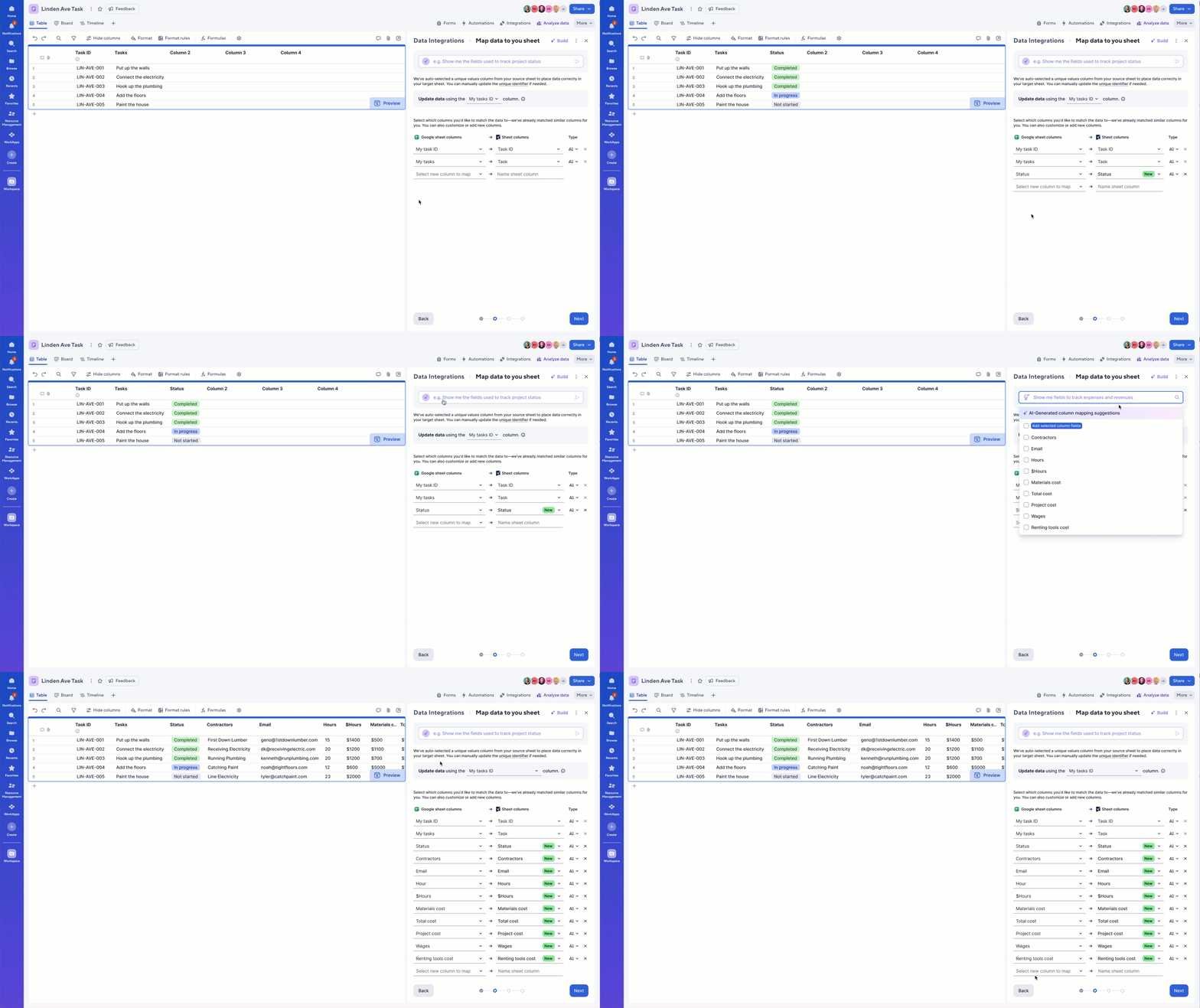
With most integrations importing 30+ columns, manual column-by-column mapping became a tedious process. Users often forgot to map required fields, didn’t understand technical fields like UIDs, or ended up with column types that conflicted with the Smartsheet mental model.

Solution
  • Auto-mapping based on matching column names
  • AI-suggested unique identifier
  • AI-suggested column types based on user data
  • Bulk column selection via a dropdown
  • Smart search to surface relevant columns

AI acted as an accelerator, not a replacement, users could always review and adjust mappings.
Workflow creation
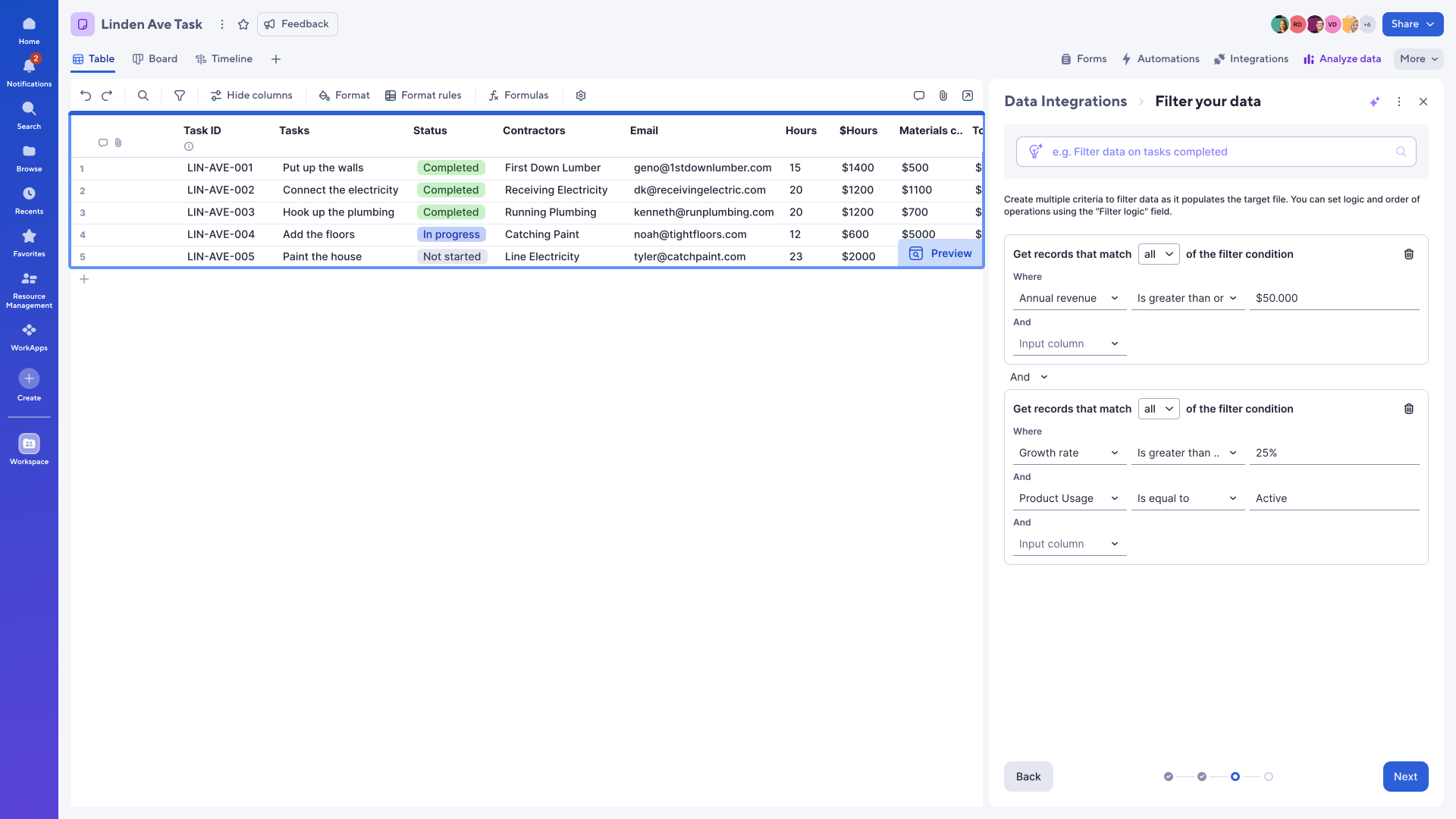
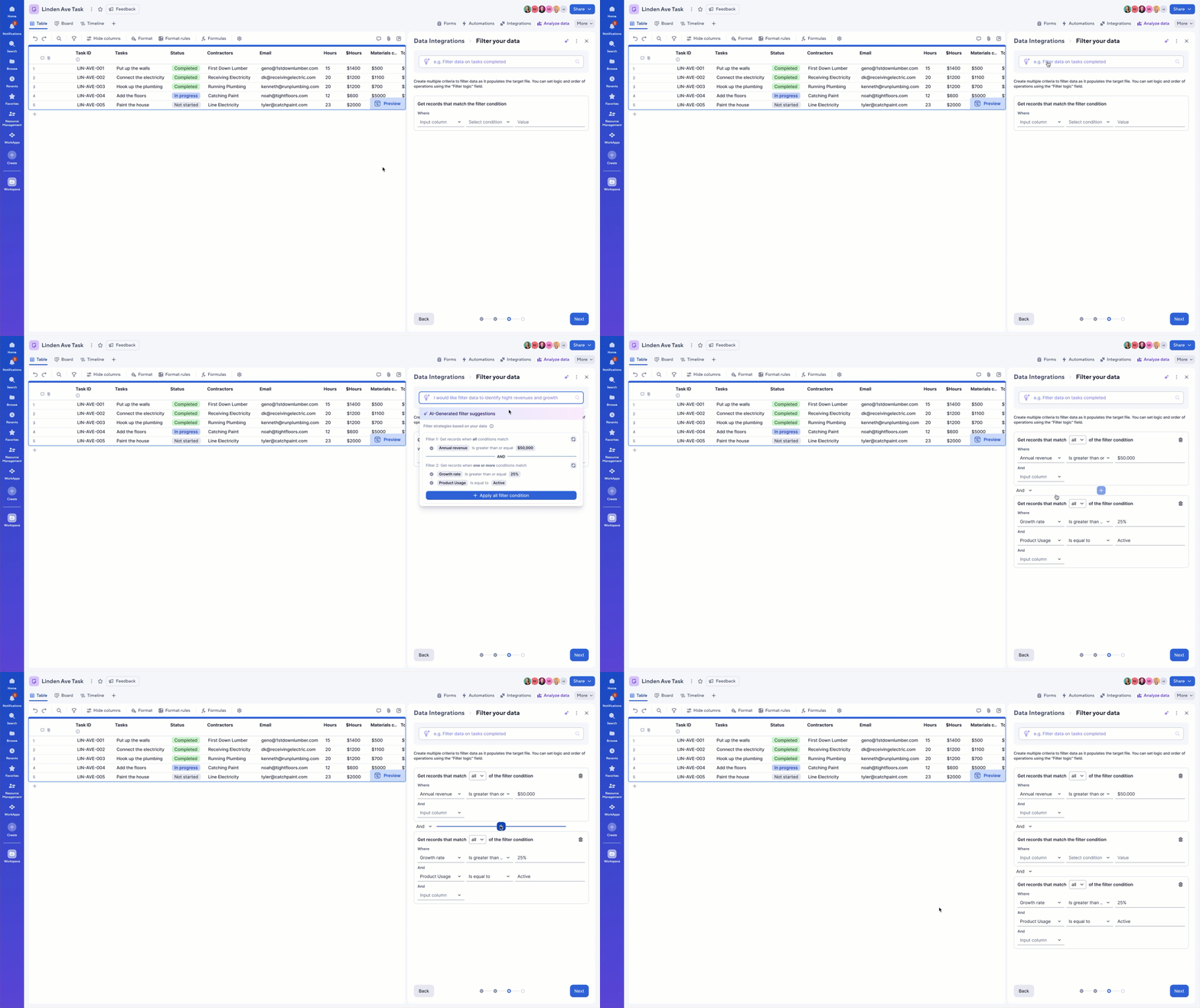
3. Filter your data
Problem
Filtering lacked support for multi-level conditions and used inconsistent UI patterns across all Smartsheet products, leading to confusion, limited control, and a time-consuming setup process.

Solution
  • Enabled multi-group filtering for more accurate results
  • Introduced AI-powered filter suggestions
  • Designed a consistent filtering pattern reusable across Smartsheet
Workflow creation
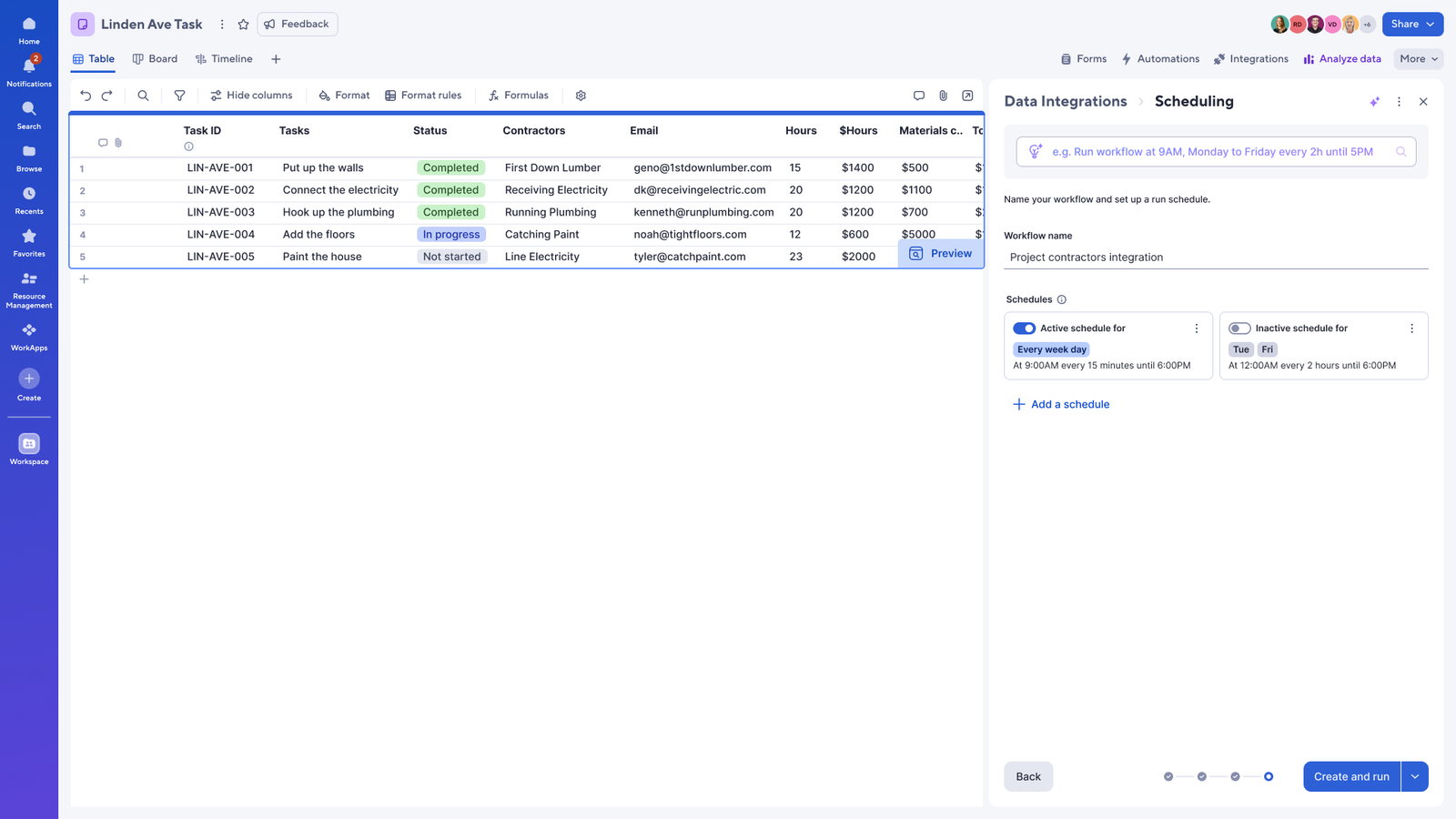
4. Scheduling
Problem
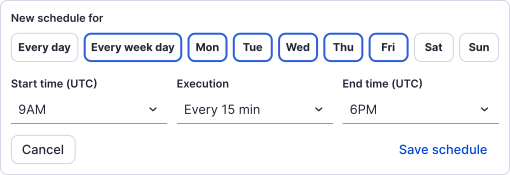
Combine steps and simplify the schedule creation process by reducing the number of user clicks.

Solution
  • Merged Workflow Name and Run Schedule into a single step
  • Provided default naming and scheduling suggestions
  • Introduced clear options to: 'Create & run' or 'Save and run later'
This reduced friction and supported different user intents.

New Workflow Management
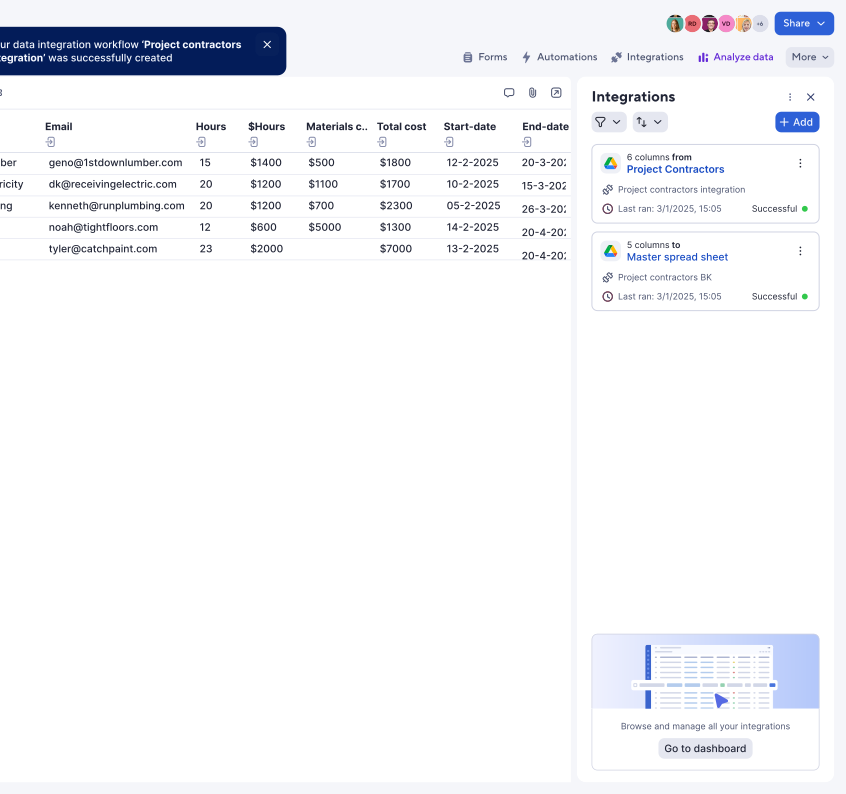
Management Panel
Problem
A single sheet could have multiple integrations, but users had to leave the sheet and navigate separate dashboards to edit workflows, breaking their context. Users and shared users often didn’t realize that the sheet’s data came from an integration, and making edits directly in the sheet frequently caused accidental data loss.

Solution
  • Introduced a sheet-level management panel
  • Displayed all integrations associated with the sheet
  • Add column-level icon indicators to help users identify data coming from integrations.
This improved transparency and reduced management friction.
Dashboard
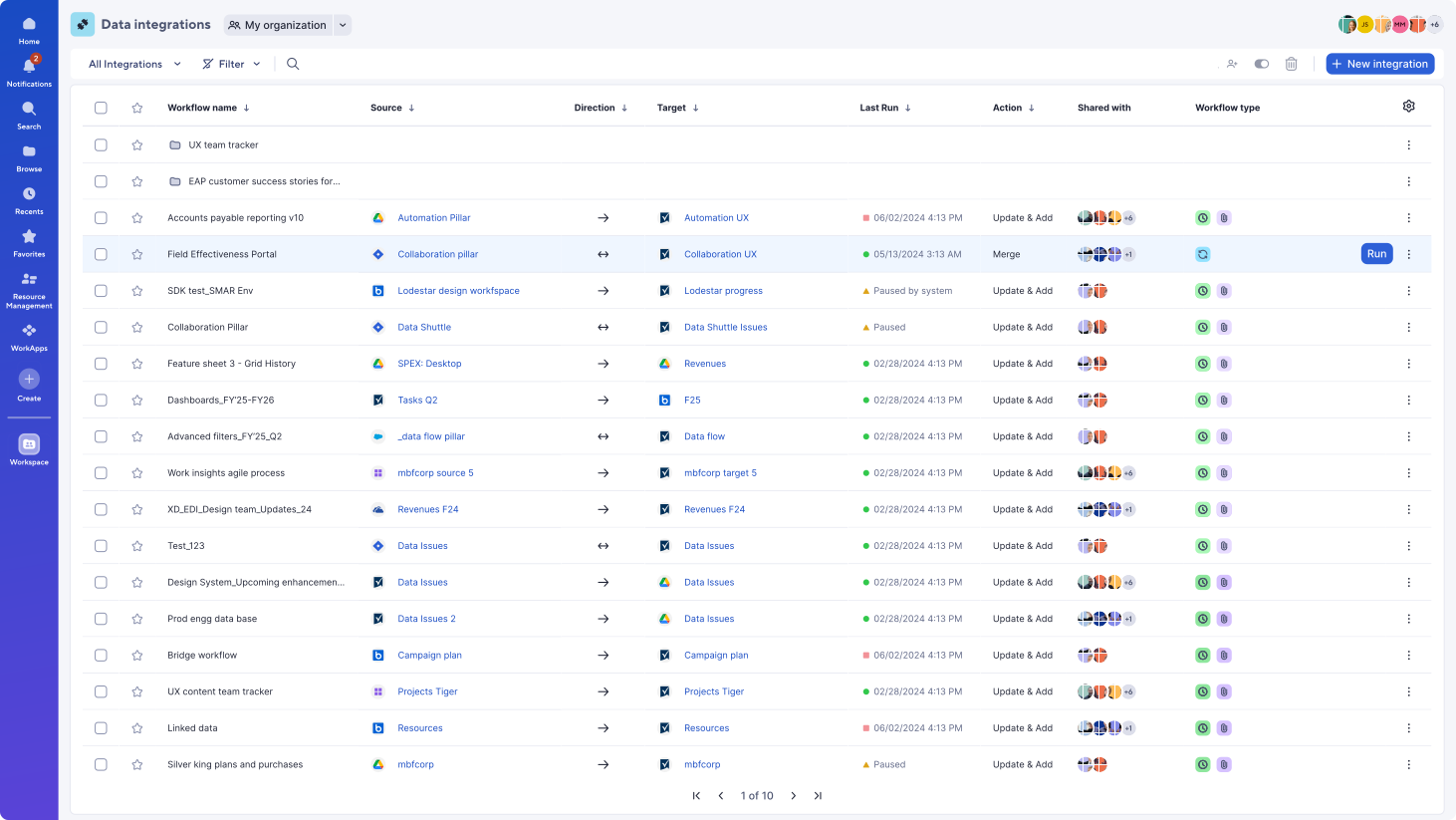
A single place of management
A new responsive dashboard allowed users to manage all integrations in one place.

Key improvements
  • Sorting workflows by integration type
  • Folder structure for organizing workflows
  • Customizable column visibility
  • Activity Logs, Run Logs, and Archive actions available from the workflow menu
  • Improved error handling and messages
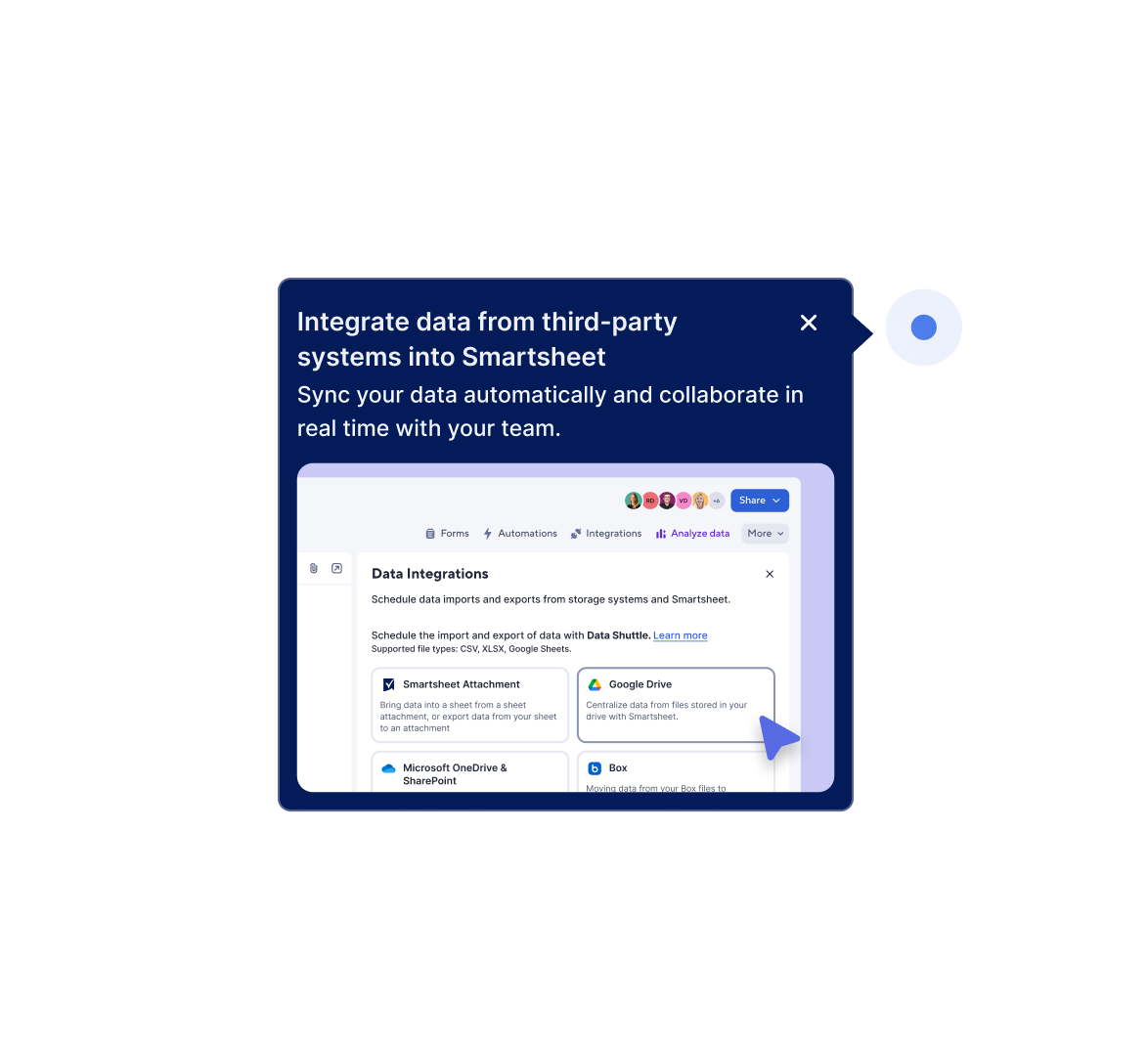
Get to value
Onboard the user to Integrations
Problem
In the previous experience, many trial and new users often found it difficult to understand the steps required to create a workflow, as a result they abandoned the workflow creation.

Solution
Pinpoint areas of high friction and use contextual nudges to guide users seamlessly to the next step.
AI
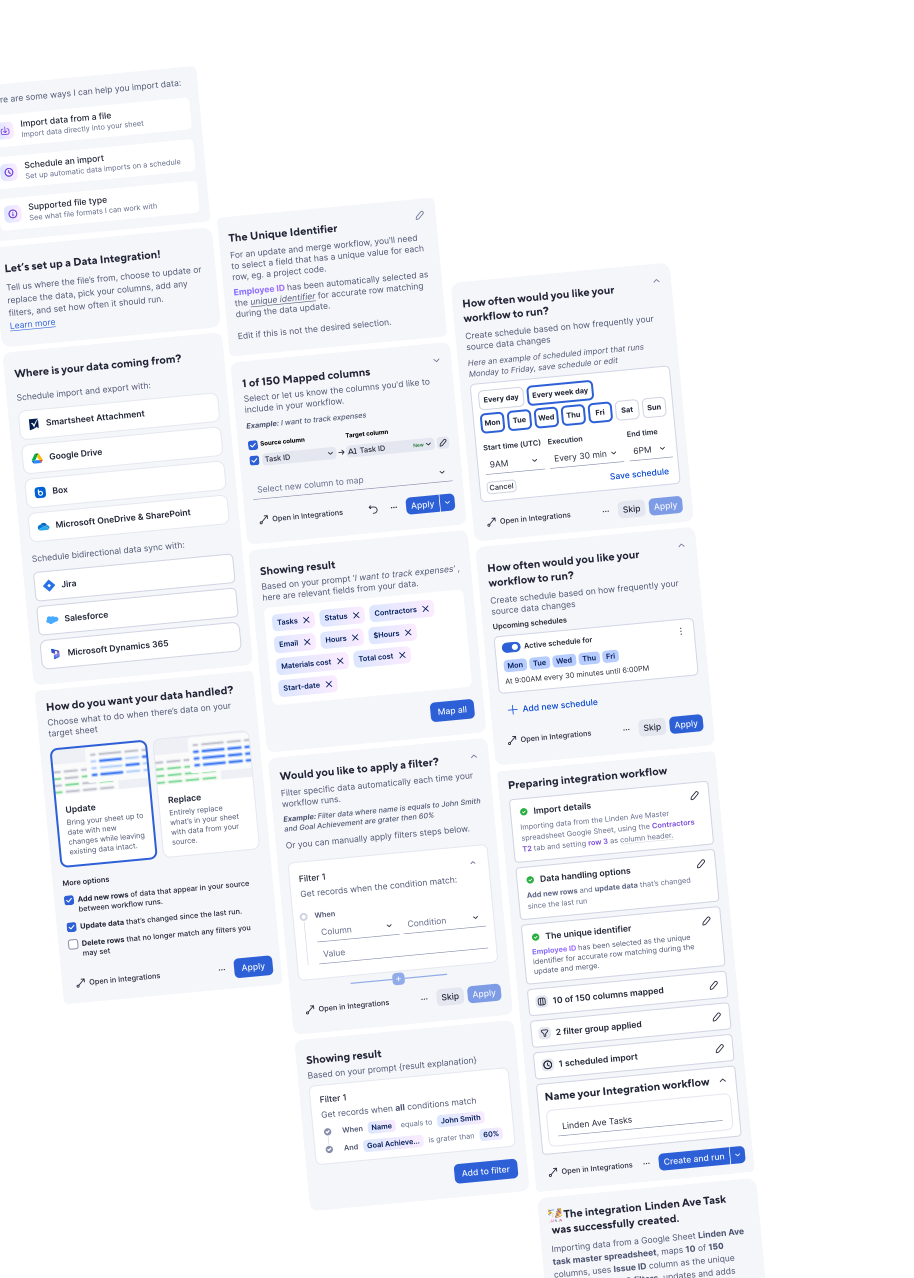
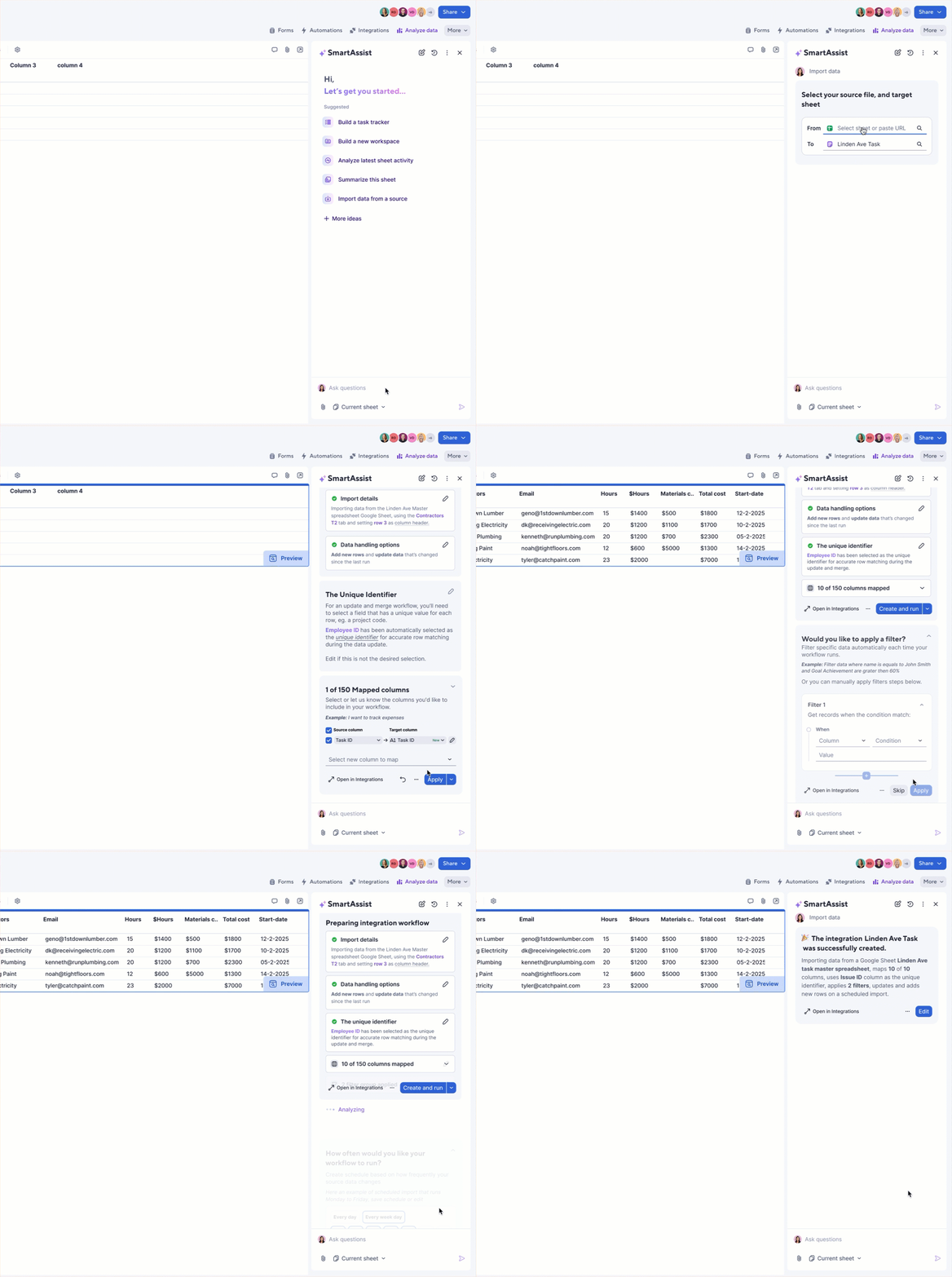
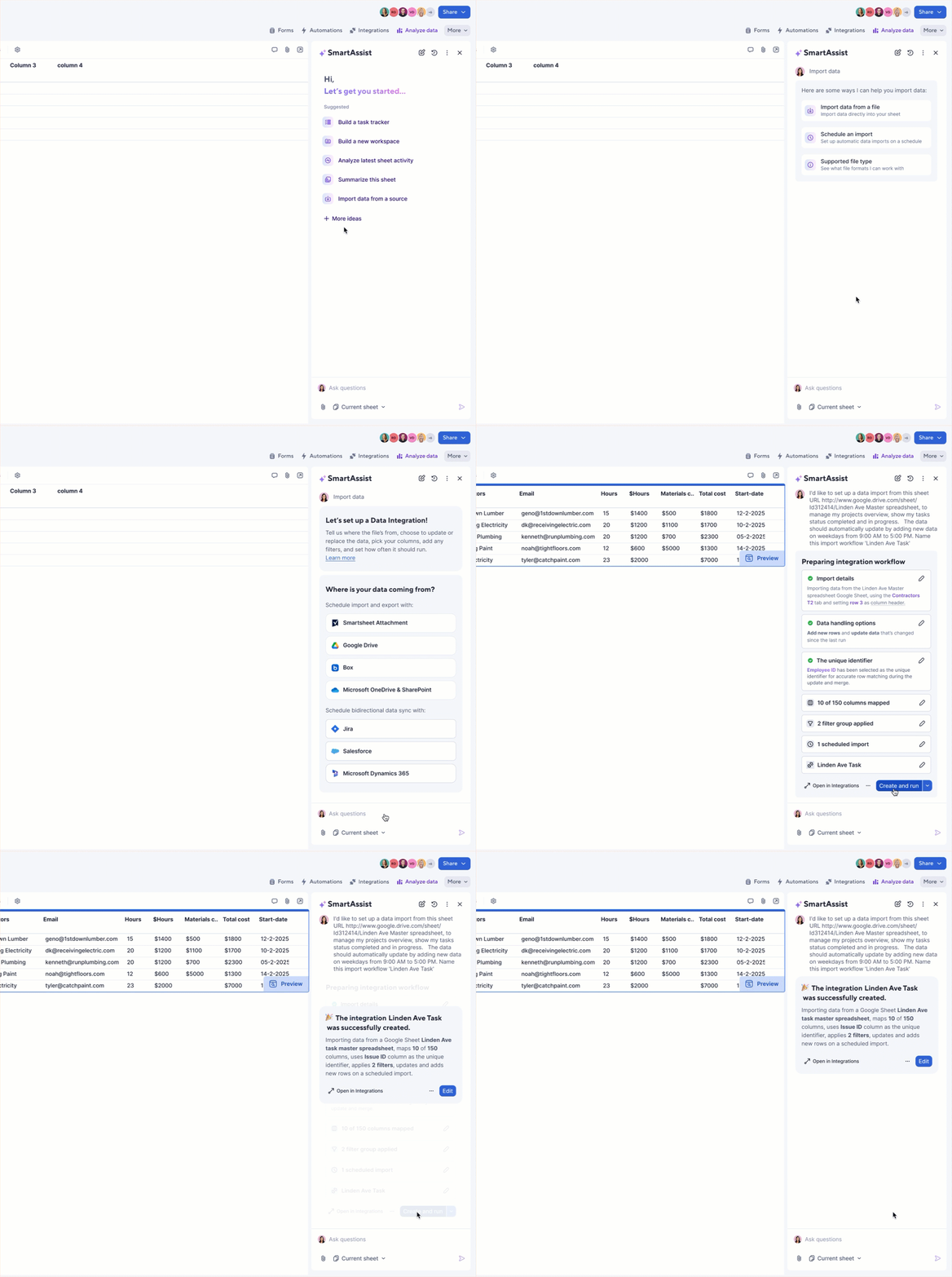
Integrations within SmartAssist:
When users ask the AI for assistance based on tasks or solutions, the aim is to provide more than just simple suggestions. Instead, an integrated experience through SmartAssist is offered, allowing users to easily connect and automate their processes.

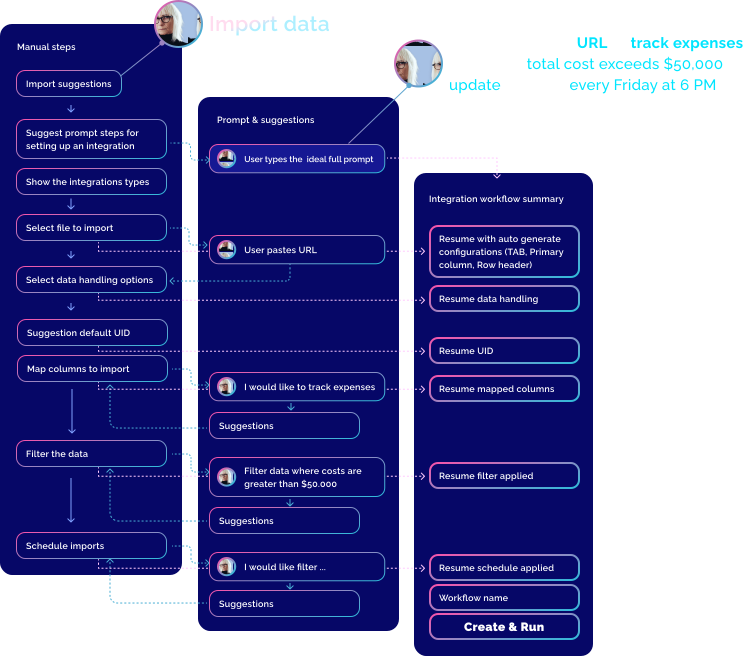
The integration design for SmartAssist focuses on guiding new users step-by-step through the integration process, while also being smart enough to recognize user prompts at any stage. All we need from the user is the source URL and the tasks they would like to accomplish.
AI
SmartAssist
Challenges
User prompts are unpredictable and often lack clear intent or structure.

Solution
Design a flow that interprets user requirements and recommends relevant widgets, even when prompts are vague, incomplete, or only partially aligned with the system.
Challenges
Keep consistency
between different
integrations type
Reducing cognitive load
while preserving
advanced functionality
Speeding up mapping for
large datasets
Designing patterns adaptable
to both UI and AI-driven
experiences
Impact
Integrations became
easier to discover
and understand
Learning curve for
adoption reduced
by 3X
Increased workflow
completion, especially
among novice users
Better visibility of
integration types
supported revenue growth
Thanks for watching!
Happy to tell you more,
Francesco Blotta

.